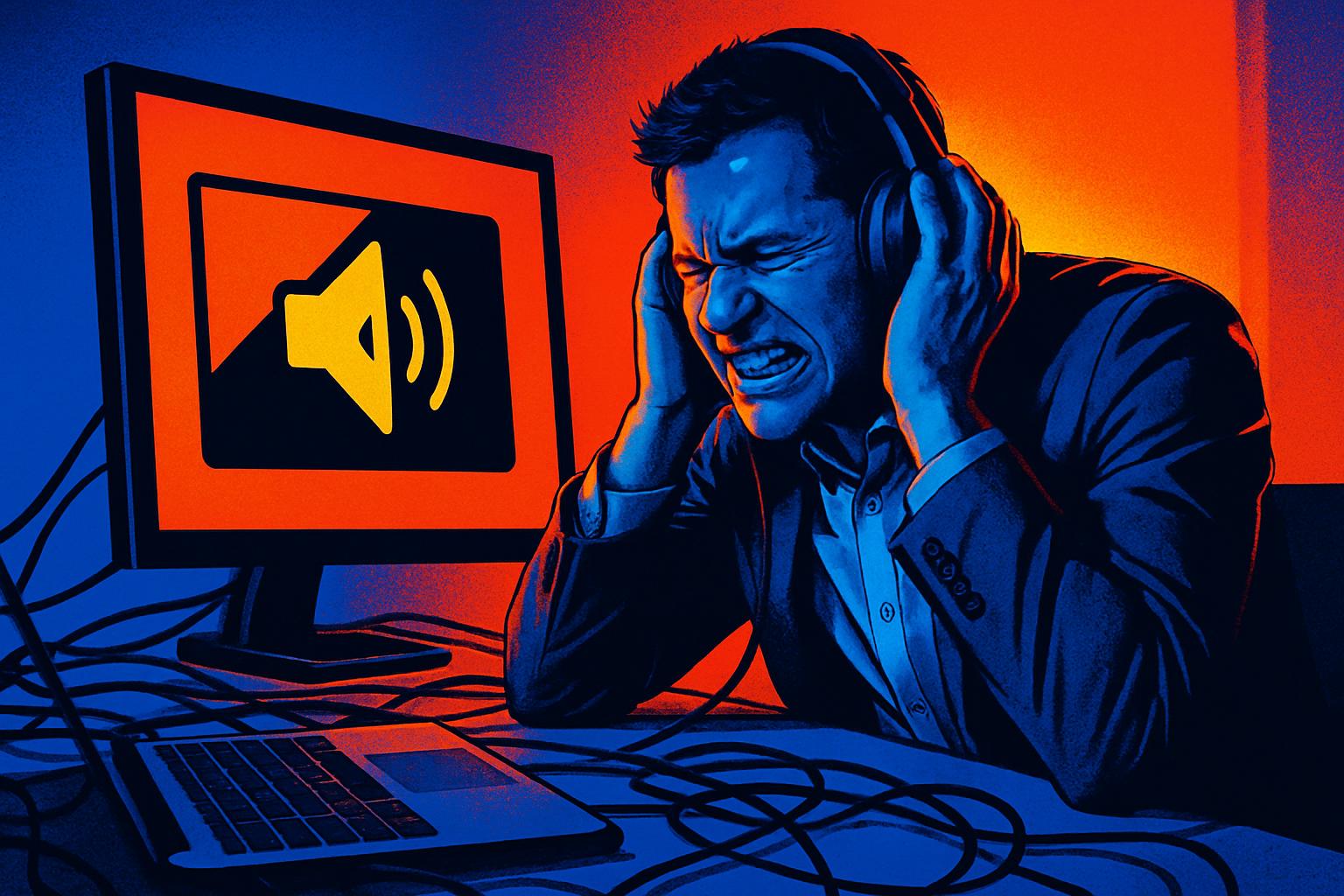
The computer’s sound cutting out, failing mid-call or disappearing completely without apparent reason is one of the most disruptive problems in any company’s daily operations. When audio fails intermittently, it becomes difficult to identify the cause, and users often end up restarting the PC repeatedly without solving the root problem. The result is lost productivity, compromised meetings and growing frustration with the equipment.
The good news is that, in the vast majority of cases, audio failures in Windows can be fixed without needing to replace hardware. With the correct diagnosis and appropriate technical intervention, it’s possible to restore sound stably and ensure the problem doesn’t recur. In this article, we explain the most common causes, the repair process and how to prevent recurrence.
Why Does PC Sound Fail Randomly?
Intermittent audio failures in Windows rarely have a single cause. In practice, they almost always result from a combination of factors that accumulate over time. The most frequent are:
- Corrupted system files: Windows components responsible for audio management can be damaged by poorly applied updates, abrupt shutdowns or malware infections.
- Outdated or incompatible audio drivers: A driver that’s not synchronized with the current Windows version can cause conflicts that manifest as random sound failures.
- Conflicts between applications: When multiple applications try to access the audio device simultaneously without proper management, interruptions and failures can occur.
- Overloaded or poorly optimized operating system: A system with excessive background processes, accumulated temporary files or a corrupted Windows registry is more prone to audio instability.
- Pending Windows updates: Outdated versions of the operating system may contain known bugs that affect the audio subsystem.
Identifying which of these factors are at the root of the problem is the first step towards an effective and lasting repair.
How to Diagnose and Repair Audio Failures in Windows
A complete technical intervention to resolve audio problems should follow a logical sequence of steps, from the simplest to the most thorough. Jumping straight to drastic solutions without prior diagnosis can worsen the problem or mask the real cause.
Step 1: Check the audio drivers
The starting point is always to confirm the status of the installed audio drivers. In Windows Device Manager, you can check whether there are errors associated with the audio device and, if necessary, reinstall or update the driver to the latest version compatible with the system.
Step 2: Repair system files
The SFC (System File Checker) tool allows you to automatically scan and repair corrupted system files. For more severe cases, DISM can be used to restore the operating system image without data loss. These procedures resolve a large percentage of audio problems originating from system corruption.
Step 3: System cleanup and optimization
The accumulation of temporary files, invalid registry entries and unnecessary processes contributes to overall Windows instability, including audio failures. A deep system cleanup, using specialized tools, reduces the load on audio components and improves overall stability.
Step 4: Install all pending updates
Keeping Windows and drivers fully updated is essential. Many security and quality updates include specific fixes for audio problems reported by users. Ignoring pending updates is one of the most common causes of persistent problems that seem impossible to solve.
Testing Stability After the Repair
Once the technical intervention is complete, the testing phase is just as important as the repair itself. It’s not enough to verify that the sound works for a few seconds. The correct procedure involves:
- Testing each relevant audio application independently, with usage sessions of at least 30 minutes.
- Simulating real usage conditions, including video calls, media playback and simultaneous use of multiple applications.
- Monitoring the system during tests to detect any CPU spikes or conflicts that may be causing the failures.
- Confirming that the problem doesn’t reappear after restarting the computer, a step that often exposes incomplete repairs.
Only after this careful validation can the problem be considered truly resolved. A well-done repair should guarantee audio stability even under intensive and prolonged use conditions.
How to Prevent Audio Failures in the Future
Prevention is always more economical and less disruptive than repair. To minimize the likelihood of facing PC sound problems again, we recommend the following best practices:
- Keep Windows always updated, with regular installation of quality and security updates.
- Update audio drivers whenever the sound card or laptop manufacturer releases new versions.
- Avoid abrupt shutdowns of the computer, which can corrupt critical system files.
- Perform periodic system cleanups, removing temporary files and checking the integrity of the operating system.
- Hire an IT maintenance plan, which ensures regular supervision of equipment status and rapid intervention in case of anomalies.
Companies that adopt a preventive approach to IT maintenance experience significantly fewer unplanned downtimes and greater longevity of their equipment.
Need help? Contact MEGABIT at comercial@megabit.ptin-person support in Baixa do Porto and the entire Northern region of Portugal.
Want to be notified when we publish our next article or video?
Free. Get notified as soon as we publish. No spam, easy to unsubscribe.