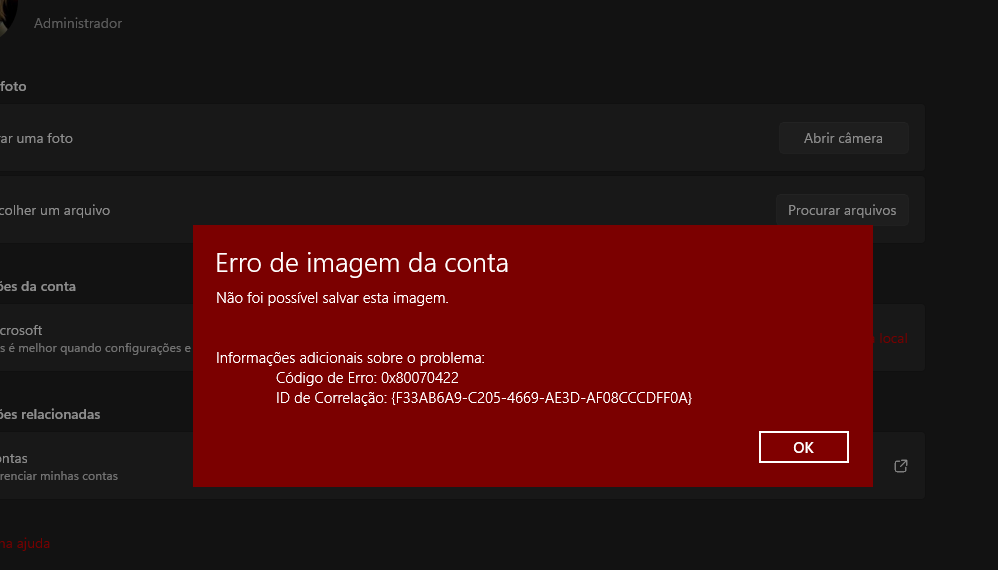
One of the most frustrating problems for any Windows user is turning on the computer and discovering that all customisations, recent files and settings have vanished, as if the system had returned to its initial state. The desktop is empty, programs no longer remember their preferences, and documents seem inaccessible. The good news is that, in most cases, the data is not lost. The culprit is most likely a corrupted Windows user profile.
This problem can arise suddenly and without warning, affecting both home users and businesses with critical workstations. In this article, we explain the most common causes, the symptoms to recognise, and the technical steps to recover the data and restore a stable working environment, without losing important information.
What Causes User Profile Corruption in Windows?
The user profile in Windows is a structure of folders and registry entries that defines the entire user environment, from the desktop to application settings. When this structure becomes damaged, the operating system cannot load it correctly and falls back to a temporary profile, which does not save any changes between sessions.
The most frequent causes include:
- Hardware failures, namely problems in the motherboard, the power circuit or storage components, which can interrupt disk writes during system startup or shutdown;
- Virus or malware infections, which alter or delete critical profile files, such as NTUSER.DAT, preventing it from loading correctly;
- Abrupt system shutdown, due to power failure or forced by the user, during write operations to the profile;
- Poorly applied Windows updates, which in rare cases can corrupt registry entries associated with the profile.
It is important to note that, even after an apparently successful initial recovery, the profile may become corrupted again if the root cause is not completely eliminated. An active virus, for example, can reinfect the profile immediately after it is restored.
How to Identify the Symptoms of a Corrupted Profile
Recognising the problem early can prevent data loss and wasted time. The most common signs of a problematic user profile are:
- The desktop appears completely empty or with the default Windows look after every restart;
- Documents and personal files seem to have disappeared, but remain accessible via other paths on the disk;
- Applications do not save settings between sessions;
- Windows displays a message indicating it has loaded a temporary profile;
- Browser history, bookmarks and saved credentials disappear every session.
If you recognise two or more of these symptoms, it is highly likely you are dealing with a corrupted profile and should act quickly to protect your data before any further intervention.
Technical Steps to Recover Data and Create a New Profile
The approach recommended by MEGABIT’s technicians is divided into three distinct phases: diagnosis and data safeguarding, creation of a new functional profile, and content migration.
1. Safeguard the data before any intervention
Even with a corrupted profile, personal files are usually intact in the C:\Users\UserName folder. The first step is to copy the entire contents of this folder, including the Documents, Pictures, Downloads and Desktop subdirectories, to a safe location, preferably an external drive or a local backup folder created for this purpose. This redundant copy ensures the data is protected regardless of what happens in the following steps.
2. Investigate and eliminate the root cause
Before creating a new profile, it is essential to ensure that the underlying problem has been resolved. If a virus or malware is suspected, a full system scan should be carried out using an up-to-date security tool, preferably from an environment outside the operating system. If the problem originates from hardware, such as failures in the motherboard’s power circuit or a damaged fan, these components must be repaired or replaced before proceeding.
3. Create a new user profile and migrate the data
With the system clean and stable, the next step is to create a new user account in Windows via the control panel or system settings. After confirming that the new profile loads correctly and saves changes between restarts, the previously safeguarded documents and files can be copied to the corresponding folders of the new user. It is recommended to keep the backup folder for a few weeks, until you confirm everything works as expected.
Best Practices to Avoid the Problem Recurring
Prevention is always more effective than recovery. To minimise the risk of facing a corrupted user profile again, adopt the following practices:
- Perform regular backups to an external device or cloud service, at least once a week;
- Keep your antivirus up to date and run periodic system scans;
- Avoid forcing the computer to shut down; always use the Windows shutdown option;
- Keep Windows and drivers up to date, especially storage and chipset controllers;
- Periodically check your hard drive’s health using diagnostic tools, as faulty sectors can cause data corruption silently.
A certified technician can also set up an automatic backup system that protects the user’s data without any manual intervention, ensuring a permanent safety net.
Frequently Asked Questions
Why does my Windows user profile revert to its initial state after restarting?
This behaviour occurs when the user profile is corrupted. Windows cannot write changes to the damaged profile and, upon restart, loads a blank temporary profile instead. The most common causes include hardware failures, such as problems with the motherboard or power supply, virus or malware infections, and incorrect system shutdown during disk writes. The problem can persist even after an initial recovery if the root cause, for example an active virus, is not completely eliminated.
Can I recover documents and files from a corrupted profile?
In most cases, yes. Personal files, such as documents, pictures and downloads, are stored in a folder associated with the old profile, typically C:\Users\UserName. Even when the profile is corrupted and Windows does not load it correctly, it is possible to access these files via File Explorer or recovery tools, copy the content to a new functional profile, and resume work without data loss. It is always recommended to create a redundant backup copy before any recovery operation.
Should I create a new user or try to repair the existing profile?
It depends on the severity of the corruption. In mild cases, it is possible to repair the profile by editing the Windows registry and pointing it to the correct profile folder. However, when the corruption is deep or caused by malware, the safest and most effective approach is to create a new user profile and migrate the data to it. This solution ensures a clean and stable environment, avoiding recurrences of the problem. Attempting to repair a severely damaged profile can result in continued system instability.
Need help? Contact MEGABIT at comercial@megabit.pton-site support in Baixa do Porto and across the entire North region of Portugal.
Want to be notified when we publish our next article or video?
Free. Get notified as soon as we publish. No spam, easy to unsubscribe.