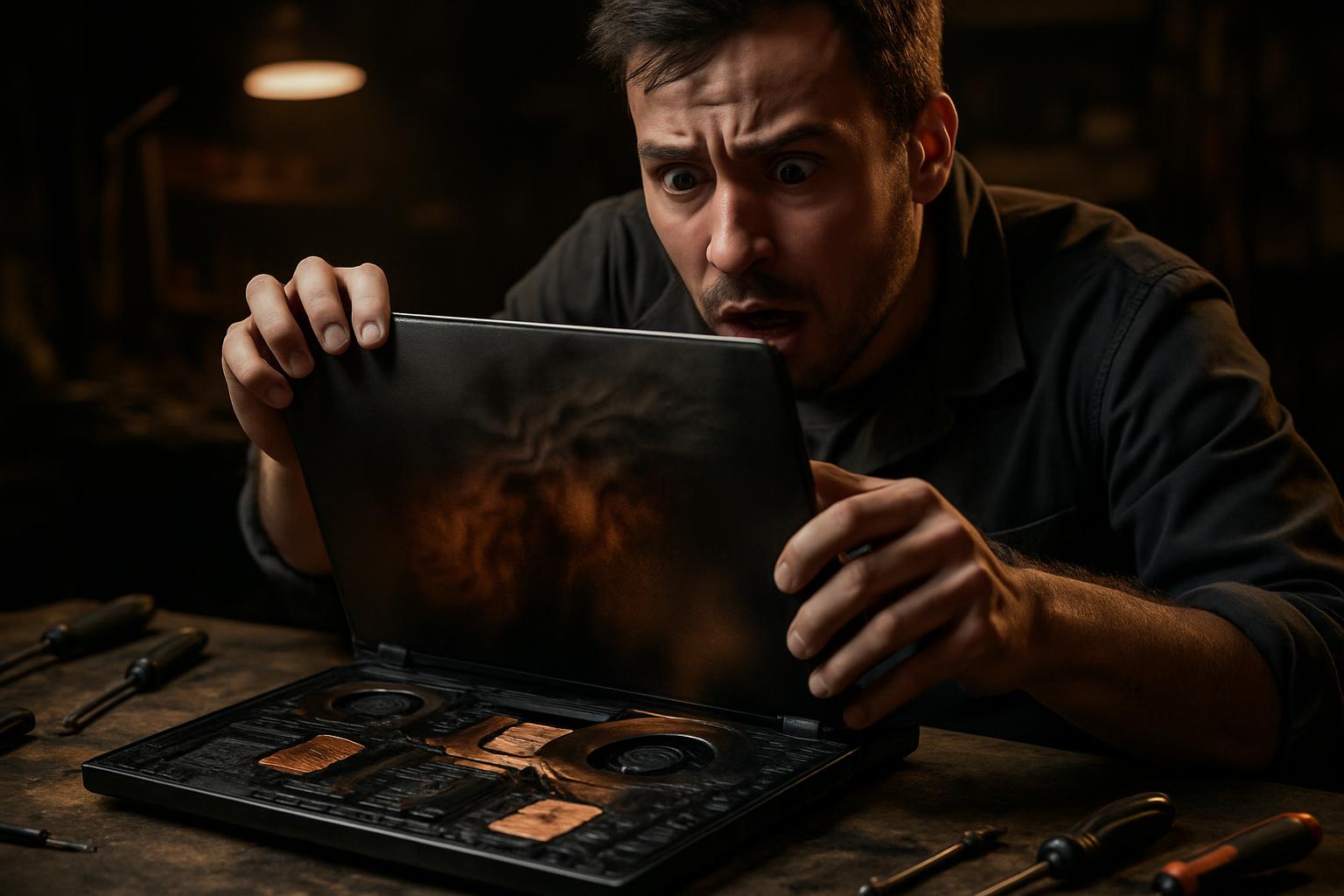
The Lenovo Legion PRO 7 is one of the most complete gaming laptops on the market, with top-tier hardware designed for demanding workloads. However, its complexity, which includes advanced GPU management, elaborate cooling systems and support for multiple operating systems, can become a source of problems when something goes wrong. Boot errors, dedicated graphics card overheating and conflicts in dual boot configurations are some of the most frequent scenarios that reach the technical bench.
This guide covers each of these problems in a practical way, from initial diagnosis to the definitive solution, with special attention to data preservation and long-term stability. If you use the Legion PRO 7 in a professional or personal setting and are facing any of these symptoms, keep reading.
Hardware Diagnosis: Memory, Disk and Overheating
Before intervening on the software, it is essential to rule out hardware causes. On the Legion PRO 7, two components are particularly sensitive: the RAM memory and the storage disk. Intermittent errors in the operating system, blue screens (BSOD on Windows) or kernel failures (on Linux) can originate from defective memory modules or damaged sectors on the disk.
The recommended steps for a correct diagnosis are:
- RAM memory test: use tools such as MemTest86 from external media, letting it run for at least two complete cycles.
- Disk test: check the S.M.A.R.T. status with tools such as CrystalDiskInfo (Windows) or smartctl (Linux) and, if possible, perform a surface test on the disk.
- Temperature monitoring: tools such as HWiNFO64 or MSI Afterburner allow you to observe CPU and GPU temperatures in real time under load.
Dedicated GPU overheating is a common problem in gaming laptops under intensive use. When temperatures exceed safe limits, the system activates thermal throttling, automatically reducing performance to protect the hardware. The result is unstable and inconsistent performance, even with top-tier hardware.
Replacing Thermal Pads, Thermal Paste and Liquid Metal
The most effective solution for overheating on a Legion PRO 7 with prolonged use is a complete renewal of the internal cooling system. This process involves three distinct but complementary interventions.
Thermal pads: the original factory pads degrade over time, especially in machines subjected to intense thermal cycles. Replacing them with pads of higher thermal conductivity significantly improves heat transfer between the video memory chips, the VRM and the dissipation system.
Thermal paste on CPU and GPU: the original thermal paste dries out and loses effectiveness after a few years of use. Applying new quality thermal paste is one of the interventions with the best cost-benefit ratio in terms of temperature reduction.
Liquid metal: on models that support this solution, applying liquid metal between the CPU die and the heatpipe can reduce temperatures by 10 to 20 degrees Celsius compared to conventional thermal paste. This is an intervention that requires technical expertise, given that liquid metal is electrically conductive and can damage components if applied incorrectly.
After these interventions, it is normal to observe much more stable temperatures under load and sustained performance in prolonged gaming or rendering sessions.
Dual Boot Configuration: Windows 11 and OMARCHY (Linux)
Installing a dual boot environment on the Legion PRO 7, with Windows 11 and a Linux distribution such as OMARCHY, requires attention to several details that, if ignored, can result in boot failures or loss of access to one of the systems.
Before any intervention of this type, data backup is mandatory. A complete backup of the disk must be performed before any change to the partition table.
The fundamental steps for a stable configuration are:
- Disable Secure Boot in the BIOS to allow unsigned Linux distributions to boot.
- Create appropriate partitions for the Linux system without affecting the Windows partitions (EFI, system, data).
- Install GRUB as the main boot manager, ensuring it correctly detects Windows 11 to include it in the boot menu.
- Check the boot order in the BIOS after installation, ensuring GRUB is first in the sequence.
After a correct configuration, the user should be able to select the desired operating system at each boot, without bootloader conflicts or errors.
GPU Mode in the BIOS: Hybrid, Discrete and Their Implications
One of the most frequently misconfigured aspects on the Legion PRO 7 is the GPU operating mode in the BIOS. This laptop supports three main modes, each with distinct implications for performance and battery life.
How to access GPU settings in the BIOS:
- Restart the laptop and press F2 (or Fn+F2) to enter the BIOS.
- Navigate to the video or graphics configuration section.
- Change the mode from Hybrid to Discrete (or dGPU Only).
- Save and restart.
The practical differences between the modes are as follows:
- Hybrid Mode (Optimus): the internal screen is connected to the Intel iGPU. The NVIDIA GPU is only activated for specific applications or when an external monitor is connected directly to the NVIDIA output. Better battery life, but with limitations in gaming and the known issue of the dedicated GPU not always being active.
- Discrete Mode (dGPU Only): the internal screen is connected directly to the NVIDIA GPU. This eliminates the second monitor problem, improves gaming performance (less frame copy latency between the two GPUs) and simplifies configuration on Linux. The trade-off is lower battery life, since NVIDIA is always active.
For users who prioritise performance, especially in gaming or creative GPU-based work, Discrete mode is the recommended choice. For those who use the laptop mostly unplugged and need greater battery life, Hybrid mode is more suitable.
Frequently Asked Questions
My Legion PRO 7 doesn’t boot correctly after installing Linux. What could be causing the problem?
Boot errors after installing a second operating system on the Legion PRO 7 often arise from boot manager (bootloader) conflicts or incorrect BIOS settings, namely an active Secure Boot mode or an incorrectly defined boot order. It is recommended to check these options in the BIOS (accessed via F2 or Fn+F2), ensure Secure Boot is disabled for Linux systems and that GRUB has been correctly installed as the main boot manager. In cases of file system corruption, it may be necessary to repair or reinstall the bootloader from external boot media.
Why does the Legion PRO 7’s NVIDIA GPU only activate with a second monitor connected?
This behaviour occurs when the card is configured in hybrid mode (Hybrid Mode or Optimus) in the BIOS. In this mode, the internal screen is connected to the integrated GPU (iGPU) and the dedicated NVIDIA GPU is only activated when a second external monitor is connected directly to the NVIDIA output. The definitive solution is to change the GPU mode in the BIOS to ‘Discrete’ or ‘dGPU Only’, which connects the internal screen directly to the NVIDIA GPU, eliminates the second monitor problem and improves gaming performance. The trade-off is lower battery life.
Is it worth replacing the thermal pads and thermal paste on the Legion PRO 7?
Yes, especially on machines with intensive use or a few years old. The original thermal pads degrade over time and with heat, reducing dissipation efficiency. Replacing them with higher-quality pads, combined with new thermal paste and, on models that support it, liquid metal on the CPU, can reduce temperatures by 10 to 20 degrees Celsius. This translates into less thermal throttling, better sustained performance and greater equipment longevity.
Need help? Contact MEGABIT at comercial@megabit.ptin-person support in Baixa do Porto and the entire Northern Portugal region.
Want to be notified when we publish our next article or video?
Free. Get notified as soon as we publish. No spam, easy to unsubscribe.