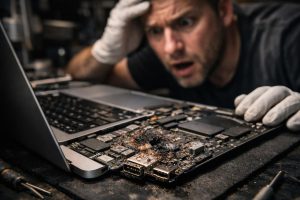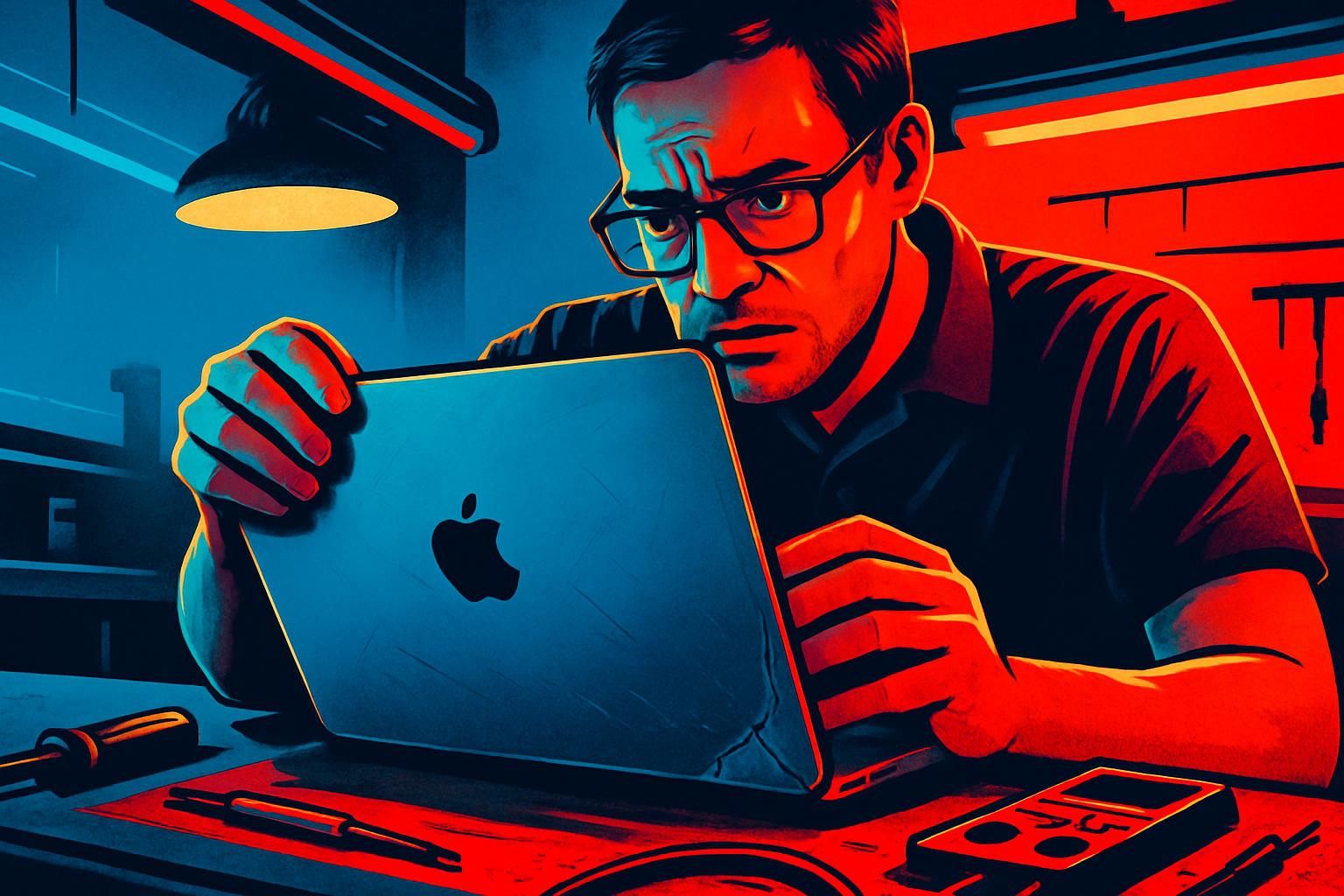
The MacBook Pro A1278 is one of Apple’s most durable and popular laptops, widely used in professional and academic settings. However, like any electronic equipment, it is subject to physical damage from falls or impacts, which is not always visible on the surface. One of the most frustrating scenarios is when the equipment shows no apparent serious damage but simply refuses to boot the operating system.
In this article, we explain how to diagnose and resolve the situation of a MacBook Pro A1278 that, after suffering a fall on the bottom right corner, stopped detecting the disk with the operating system. The guide applies to any company or user facing similar symptoms who wants to understand the origin of the problem before making decisions about the equipment.
Common Symptoms: When the MacBook Won’t Boot the Operating System
When a MacBook Pro A1278 is turned on but cannot boot normally, the most frequent symptoms include:
- Gray screen with a blinking question mark on the folder
- Absence of boot options in disk selection mode (Option key when powering on)
- Very slow boot followed by a halt
- Error message indicating that no boot disk was found
These symptoms can have various origins: software failure, file system corruption, disk failure, or, as we will see, a physical problem with the data cable that prevents communication between the disk and the motherboard.
Initial Diagnosis: Physical Fall and Hidden Internal Damage
When a MacBook suffers a fall, even if the chassis shows no serious fractures, internal components may be affected by the impact. In the case of the A1278, the lower right area houses connectors and circuit paths that connect the storage disk to the motherboard. An impact in this area can:
- Damage the SATA data cable, which is particularly fragile in this model
- Dislodge or damage small resistors on the motherboard responsible for communication with the disk
- Create micro-cracks in connectors that only show up intermittently
The first step in diagnosis should always be a physical inspection of the inside of the equipment, with special attention to the data cable and the areas near the point of impact. It is essential to use the right tools and, if necessary, consult a specialised technician, since opening the equipment incorrectly can worsen the damage.
A common misconception in this type of situation is to assume that the MacBook contains two physical disks when, in reality, it may be a single disk with two partitions. This distinction is important because it affects the entire diagnostic and recovery approach.
Replacing the Data Cable and Damaged Components
After internal inspection, if the SATA data cable shows signs of physical damage such as bends, cuts, or dislodged connectors, the most effective solution is to replace it. In the MacBook Pro A1278, this cable is an affordable replacement part, but its installation requires care to ensure a correct fit at both ends: at the disk and at the motherboard.
If there are damaged resistors on the motherboard, the repair involves micro-soldering, a process that must be carried out by a technician with proper equipment and experience in precision electronics. Attempting a repair without the correct tools can result in irreversible damage to the motherboard.
After replacing the components, the recommended steps are:
- Turn on the equipment and check if the disk is detected in Disk Utility
- Run First Aid in Disk Utility to check the integrity of the file system
- Run Apple Diagnostics (D key when starting up) to confirm there are no hardware errors
- Try to boot the operating system normally
Encrypted Disks: Diagnosis Without Compromising Privacy
A situation that often arises in a business context is the presence of disks encrypted with FileVault, macOS’s native encryption tool. When the user’s password is not available, access to the main account is blocked, which may seem like an obstacle to diagnosis.
However, it is possible to carry out complete diagnostics without compromising the encrypted data:
- Boot with a guest account, which does not require a password and does not access personal data
- Use recovery mode (Command + R) to access Disk Utility and run integrity tests
- Run external diagnostic tools from a bootable USB drive
If the tests show no disk errors, the problem was indeed physical, in the cable or connecting components, and not in the storage itself. This is good news: it means the data is intact and the equipment can be recovered without loss of information.
In a business context, before handing over any equipment for repair, it is always advisable to ensure there is an up-to-date backup. If the equipment contains sensitive information, inform the technician of the applicable access restrictions, so that the diagnosis is carried out with full respect for the organisation’s privacy policy.
Frequently Asked Questions
My MacBook Pro A1278 doesn’t detect the disk after a fall. What could have caused the problem?
A fall, even if it doesn’t damage the disk internally, can damage the SATA data cable that connects the disk to the motherboard. Resistors or connectors in these areas are particularly sensitive to impacts. The result is that the system cannot communicate with the disk and doesn’t boot the operating system, even though the disk may be physically intact and error-free.
If the disk is encrypted and I don’t have the password, can I still run a diagnosis?
Yes. It is possible to boot the MacBook with a guest account or through external diagnostic tools, such as a macOS system in recovery mode or a bootable USB drive. This way, it is possible to run disk integrity tests without accessing the user’s encrypted data, ensuring the privacy of the information.
How do I know if my MacBook has one or two disks, and whether it’s partitioned?
In macOS, you can check through Disk Utility, accessible in Applications, Utilities, or in recovery mode (Command + R when starting up). Disk Utility shows all physical storage devices and their respective partitions. A disk with two partitions appears as a single physical device with two volumes listed below, which can sometimes be mistaken for two separate disks.
Need help? Contact MEGABIT at comercial@megabit.ptin-person support in Baixa do Porto and the entire Northern Portugal region.
Want to be notified when we publish our next article or video?
Free. Get notified as soon as we publish. No spam, easy to unsubscribe.