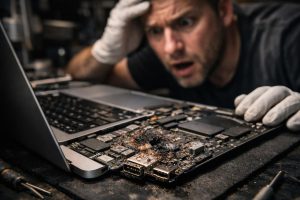
The MacBook Pro A1990 is one of Apple’s most robust and reliable laptops, widely used in professional and business environments. However, like any electronic equipment, it is subject to failures over time, especially when used intensively. One of the most common and concerning problems is the device simply failing to turn on, without any prior warning.
In this article we explain the most common causes behind this failure in the MacBook Pro A1990, how it is possible to diagnose and repair the power circuit, how to prevent overheating, and when it makes sense to plan for battery replacement. The goal is to help any business or user understand the problem and make informed decisions about equipment maintenance.
MacBook Pro A1990 Won’t Turn On: The Power Circuit Problem
When a MacBook Pro A1990 won’t turn on, the first suspect should be the power circuit. This circuit is responsible for managing the energy coming in through the charger, distributing it to the different components of the logic board, and ensuring that the battery charges correctly. When one of its components fails, the most common result is a MacBook that simply doesn’t respond, even with the charger connected.
The most common causes include:
- Burnt-out fuses or MOSFETs on the logic board, usually caused by voltage spikes or prolonged overheating;
- Faulty charge controllers, which prevent correct communication between the MagSafe/USB-C charger and the system;
- Damaged SMD components, often invisible to the naked eye, which require diagnosis with specialized equipment;
- Localized short circuits on the board, often resulting from liquid ingress or accumulated oxidation.
Repairing the power circuit requires micro-soldering and in-depth knowledge of Apple’s logic board architecture. When successfully carried out, the MacBook turns on normally again and the charger resumes charging the battery without issues.
Overheating in the MacBook Pro A1990: Causes and Solution
Even after repairing the power circuit, it is common to detect operating temperatures above normal. Overheating is a serious problem in a MacBook Pro: besides reducing performance through thermal throttling (the system deliberately slows down to lower the temperature), it can accelerate component degradation and cause new failures.
The two most common causes of overheating in a MacBook Pro A1990 are:
- Dust accumulation in the ventilation grilles, fans and heat sink, which prevents proper air circulation;
- Thermal paste degradation between the processor (and GPU) and the heat sink, which loses efficiency over time and stops conducting heat properly.
The solution involves a complete internal cleaning of the equipment, with careful removal of accumulated dust, and replacing the thermal paste with a quality compound. After this intervention, operating temperatures drop significantly, the system stops throttling and overall performance visibly improves, even in demanding tasks.
This cleaning is recommended preventively every 18 to 24 months in office environments, or more frequently in dustier or more intensively used environments.
Battery Management: When to Replace and When to Wait
During the diagnosis of a MacBook Pro A1990, it is common for the technician to flag the battery’s condition as something to monitor. However, flagging the battery does not necessarily mean that replacement is urgent.
The decision to replace or wait should be based on objective criteria:
- Real battery life: if the equipment still lasts several hours of use on a full charge, the battery is fulfilling its main function;
- Cycle count: Apple sets a cycle limit for each model, beyond which degradation is expected, but not critical if battery life remains acceptable;
- No swelling: a swollen battery poses a physical risk and must be replaced immediately, without exception;
- System alerts: macOS displays a “Service Recommended” warning when capacity drops below a threshold defined by Apple.
When none of these critical factors are present, replacement can be planned for a future date, in order to manage the investment without compromising the equipment’s operation. What matters is that the decision is based on concrete data, not just excessive caution.
Best Practices to Extend the Lifespan of a MacBook Pro in a Business Environment
Preventive maintenance is the best way to avoid unexpected failures and high repair costs. For Apple equipment used in a professional context, we recommend the following practices:
- Periodic internal cleaning: remove accumulated dust and renew the thermal paste every 18 to 24 months;
- Temperature monitoring: use tools such as iStatMenus to track temperatures in real time and detect anomalies early;
- Use of original or certified chargers: low-quality chargers can damage the power circuit over time;
- Avoid frequent full discharges: keeping the battery between 20% and 80% charge significantly extends its lifespan;
- Annual technical review: a diagnosis performed by a specialized technician allows problems to be identified at an early stage, before they become serious failures.
The MacBook Pro A1990 won’t turn on even with the charger connected. What should I do?
If the MacBook Pro A1990 won’t turn on and shows no sign of life with the charger connected, the first step is to try an SMC reset (System Management Controller reset). If the problem persists, there is likely a failure in the logic board’s power circuit, which requires diagnosis and repair by a technician specialized in Apple electronics. Do not attempt to open the equipment without the proper equipment and knowledge.
The MacBook Pro gets too hot and turns off by itself. Should I replace the fan?
Not always. In most cases, overheating is due to dust accumulation in the ventilation grilles and heat sink, as well as degradation of the thermal paste between the processor and the heat sink. Internal cleaning and thermal paste replacement solve the problem in the vast majority of situations, without the need to replace the fan, unless it is noisy or faulty.
Is it worth replacing the MacBook Pro A1990 battery immediately when the technician flags it?
It depends on the actual condition of the battery. If it can still support several hours of use on a full charge and shows no swelling or safety issues, replacement can be postponed. The technician should assess the cycle count, current capacity versus original, and any system alerts. Replacing it preventively is always a valid option, but it is not mandatory immediately in every case.
Need help? Contact MEGABIT at comercial@megabit.ptin-person support in downtown Porto and throughout the North of Portugal.
Want to be notified when we publish our next article or video?
Free. Get notified as soon as we publish. No spam, easy to unsubscribe.