



In a company, few problems are as disruptive as a desktop computer that, from one moment to the next, just stop calling. Without prior notice, no error message, nothing. The screen remains black, the equipment does not respond and the employee is unable to work. This type of failure, although common, requires a quick and structured technical response to minimize the impact on team productivity.
In this article, We explain how you should act when faced with this situation, What are the most common causes of a computer that won't start?, how to ensure work continuity through backup solutions and how you can take advantage of the equipment warranty to resolve the issue at no additional cost.
Most Common Causes of a Desktop Computer That Won't Turn On
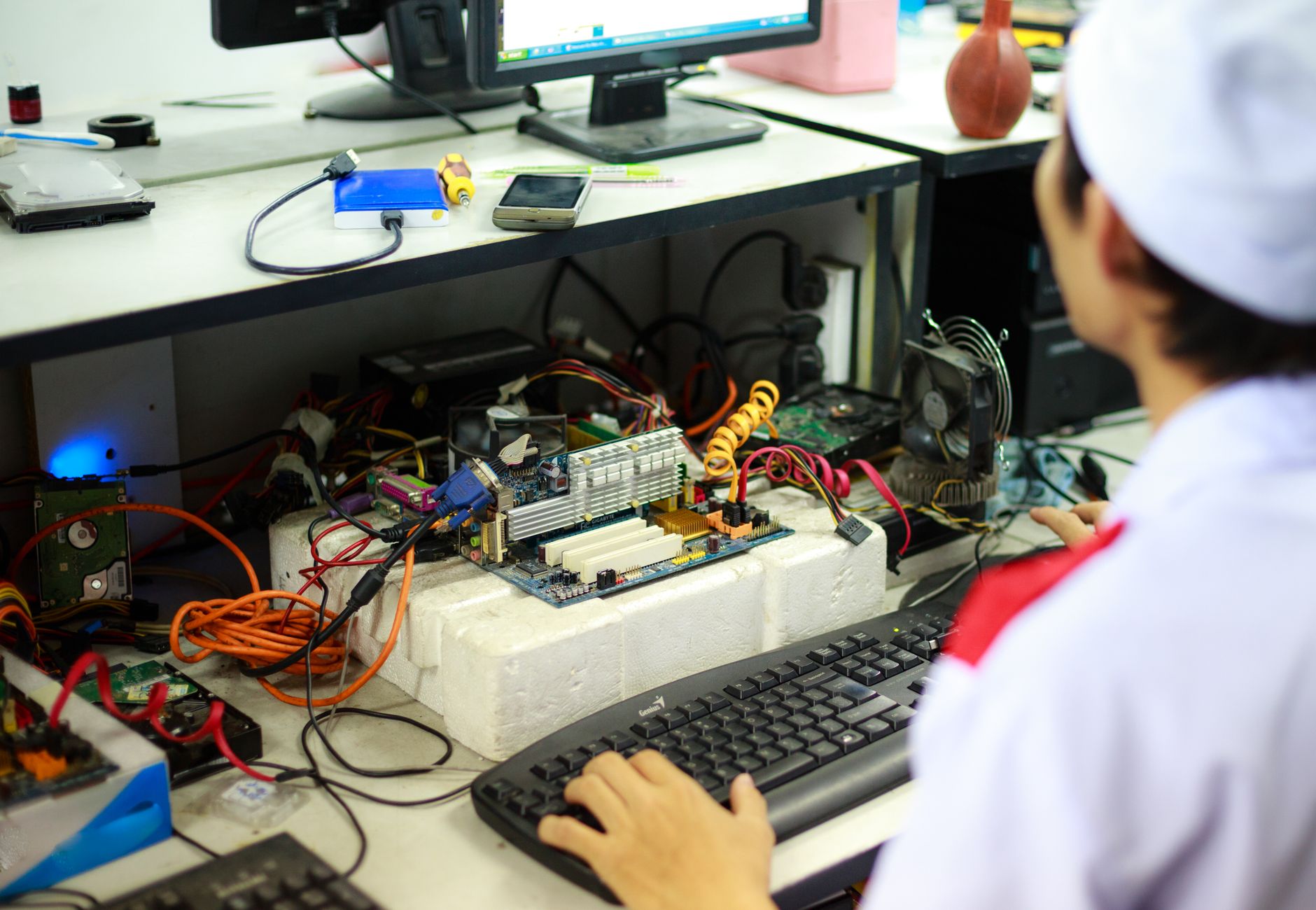
Before any intervention, It is essential to understand that a computer that does not turn on can have very different origins.. This is not always a serious fault, but an in-person technical diagnosis is always recommended. The most common causes include:
- RAM memory failure: One of the most common problems in desktop computers. A faulty or poorly seated memory module can completely prevent the system from booting, without any clear visual indication.
- Damaged power supply: The power supply is responsible for distributing power to all components. Its failure often results in equipment that appears completely lifeless..
- Motherboard problems: Faults on the computer's main board can permanently block the boot and usually require component replacement..
- Accumulated overheating: Poor cooling systems, Dust build-up or faulty fans can cause hardware failures over time.
- Boot disk failure: A hard drive or SSD with bad sectors can prevent the operating system from loading, resulting in a failed start.
Correct identification of the cause is essential to determine whether the equipment can be repaired locally, whether it should be sent to the distributor or whether component replacement is necessary.
How to Ensure Continuity of Work During Repair
While the broken equipment awaits repair, The company's priority must be to ensure that the affected employee is able to maintain their duties without significant interruption. There are several practical approaches to this:
- Replacement laptop: The most immediate solution is to provide alternative equipment, Properly configured with essential tools. Ideally, This laptop must have access to the same network, shared printers and internal systems used by the employee.
- Access to virtual machines: Many companies use virtual environments to centralize applications and data. Configuring a shortcut to access the virtual machine on the replacement equipment allows the employee to resume work in an almost transparent way, as long as you have the necessary access credentials.
- Remote access to other systems: Remote Access Tools, Cloud platforms and browser-based systems facilitate operational continuity regardless of the physical equipment used.
A critical aspect that is often underestimated is the management of access credentials. In emergency situations like this, Lack of required passwords can significantly delay temporary job setup. It is recommended that companies maintain a secure and up-to-date record of internal systems credentials, accessible to IT managers or IT support partner.
Activate the Equipment Warranty: What You Should Know
If the faulty computer is within the warranty period, the repair may not represent any cost to the company. Yet, The warranty claim process has some requirements that you should be aware of:
- Required documentation: Always keep the purchase invoice, the serial number of the equipment and any correspondence with the distributor. These documents are essential to validate the warranty.
- Prior technical diagnosis: Many distributors and manufacturers require a technical report identifying the fault before accepting equipment under warranty.. Your IT support partner can prepare this document.
- Technical intermediation: Having a specialized technician handle the process with the distributor saves time and avoids misunderstandings. The technician knows the appropriate language and procedures to speed up resolution.
- Repair deadlines: Warranty repairs can take a few days to weeks, depending on distributor and parts availability. That's why, the backup solution must be seen as a real necessity and not as a negligible stopgap measure.
Good Practices to Avoid Operational Disruption Situations
The best way to deal with an unexpected breakdown is to be prepared before it happens.. Some preventative measures can significantly reduce the impact of hardware failures on your company:
- Regular preventive maintenance: Internal cleaning of equipment, Checking the health of components and updating drivers and firmware help extend the life of computers and detect problems before they become critical.
- Active backups policy: Ensuring that employee data is regularly backed up to the cloud or to a local server reduces the risk of losing information in the event of a sudden breakdown.
- Backup equipment available: Keeping one or two replacement devices configured and ready to use allows for a much faster response in emergency situations.
- Centralized credential management: Using an enterprise password manager ensures that, in urgent situations, access to critical systems is not blocked due to lack of credentials.
- IT support contract: Have a trusted technical partner with quick response capabilities, including face-to-face service, It is an investment that is justified whenever a critical breakdown occurs.
Frequently Asked Questions
What to do immediately when a work computer stops turning on?
The first step is not to attempt to repair the equipment internally without technical diagnosis., as this may worsen the fault and compromise the warranty. You should contact your IT support provider for an on-site check. While waiting, identify whether replacement equipment is available for the affected employee, in order to minimize downtime.
How the warranty repair process works?
When equipment is within the warranty period, the process typically involves identification of the fault by a technician, issuing a technical report and contacting the distributor or manufacturer to request repair or replacement. It is important to keep all purchase documentation and the equipment serial number. The support technician can handle this process on your behalf, streamlining communication with the distributor.
What is a backup computer and when should I use it?
A backup computer is temporary replacement equipment, usually a laptop, which is configured to replicate the essential functionalities of the affected workstation. Should be used whenever major equipment becomes inoperative and the employee cannot wait for it to be repaired without loss of productivity. Configuration includes internet access, network printers and, when applicable, access to virtual machines or internal company systems.
Need help? Contact MEGABIT em comercial@megabit.pt — face-to-face support in downtown Porto and the entire North of Portugal.